

Advertising on Google Maps
A quick guide on how to get your adverts onto Google Maps
WHAT COURSE ARE YOU LOOKING FOR?
-
How to get Ads onto Google Maps
28 Oct 2026How to Advertise on Google Maps
If you run a local business, advertising on Google Maps can help more people find you, call you or visit your premises.
Think about what happens when someone searches for a 'café near me', a local plumber or a supplier in their town. Google Maps helps them find businesses in the area. With Google Ads, you can pay to give your business a better chance of appearing in these searches.
Whilst you don't have to be a Google Ads expert to get started. You do, however, need to set up your account correctly and choose the right type of campaign.
In this guide, we'll explain how to advertise on Google Maps, what you need to do first and how to get the best value from your budget.
Two options to choose from
Google does not offer a standalone, "Maps-only" campaign. Instead, map advertising inventory is reached through
Search Campaigns (via Location Assets / Search Partners) and
Performance Max Campaigns (specifically optimized for store goals).
This means you can't run a campaign that only appears in Google Maps. Your ads will appear across the Google Ads network (or at least part of it).
Below is a guide on how to configure your Search and PMax campaigns to maximize your visibility for people doing location searches in Google Search and people searching on Google Maps.
Step 1: Set up your Google Business Profile (GBP) and link it to Google Ads
Before launching any ad on Google Maps, your Google Business Profile must be linked to your Google Ads account:
-
Verified Profile: Ensure your Google Business Profile (GBP) is claimed, verified, and up-to-date, with quality images, and your opening hours. (And some good reviews).
-
Account Linking: In Google Ads, navigate to Tools > Data Manager > Linked Accounts and connect your Google Business Profile. (You can link multiple GBP accounts to one Google Ads account if you have multiple locations.)
-
Location Assets: Enable Location Assets at the account or campaign level. Without active location assets, Google Ads cannot match your business to geographic queries or display map units.
Step 2: Choose the right Google Ads Campaign type
For most local businesses, there are two useful campaign approaches to consider: Search campaigns and Performance Max.
2.1 Key Benefits for Using Standard Search Campaigns
A Search campaign is often a sensible starting point if you want to reach people who are actively looking for your products or services.
For example, a local cafe might target searches such as:
• Best cafe in Manchester
• Cafe near me
• Local coffee shopA Search campaign lets you choose keywords, write adverts and set precise geographical targeting. You can choose a small radius around your postcode; or select individual postcode areas.
Two key benefits Search campaigns offer (compared to Performance Max) are:
-
Keyword-Level Intent & Precision: You retain full control over exact, phrase, or broad match keywords. Use Phrase or Exact if you only want to bid for searches for high-intent terms. P Max tends to target more broadly.
-
Negative Keyword Control: You can prevent budget waste on irrelevant searches or nearby competitors you do not wish to target. You can do this in PMax but it is more limited.
2.2 The benefits of using Performance Max
PMax replaced legacy "Local Campaigns" and is Google’s automated, AI-driven vehicle designed to maximise offline actions. When configured with the objective "Local store visits and promotions", PMax unlocks visual and contextual ad formats on Google Maps that standard Search campaigns cannot access.
How Ads Appear
-
Promoted Pins: As users pan across or navigate Google Maps, your logo or branded pin appears directly on the map surface, even if they haven't explicitly typed a search term.
-
Map Suggest Ads (Autocomplete Ads): When a user starts typing in the Maps search bar (e.g., typing "coff..."), Google can autocomplete with your business listing before the query is even submitted.
-
Placesheet / In-Route Ads: When someone looks up directions or views another business listing, your ad can show as a suggested stop along their route or as an alternative nearby option.
-
Local Promotions Assets: Highlights discounts, events, or in-store offers (including scannable codes) directly beneath your Maps pin.
Key Benefit for P Max is Maximizing Visibility
-
Passive Discovery & Foot Traffic: PMax doesn’t wait for an exact keyword search; it captures users who are simply browsing an area or navigating nearby. (Great for cafes, restaurants etc)
-
Multi-Format Domination: PMax uses visual assets (logos, square images, store promotions) to command significantly more screen real estate than a plain text Search ad.
-
Local Store Visit Optimization: PMax optimizes bids toward offline outcomes: Store Visits, Directions Clicks, and Call Clicks using Google’s location data.
-
Local Inventory Integration (LIA): If you connect a Google Merchant Center feed with local store inventory, your PMax ads can show users that a specific item is in stock at your nearby branch.#
Note of warning: Whilst Performace Max does increase visibility, it often generates more wasted clicks. Primarily, as it doesn't just target people who have searched for high-intent keywords.
Step 3 "Tilt" Budget Toward Google Maps
Because Google does not let you buy Maps inventory exclusively, use these tactical optimisations to force your budget onto the map:
For Search Campaigns:
-
Enable Search Partners: Google Maps is classified as part of the Search Network and Google Search Partner ecosystem. Do not opt out of Search Partners.
-
Layer Hyper-Local Radii: Add location targeting around a 1–5 km/mile radius around your physical address . For manual CPC campaigns consider using an aggressive positive bid modifier (e.g., +30% to +60%)
-
Target "Near Me" & High-Proximity Intent: Include keywords paired with local terms, postcodes, and location identifiers.
For Performance Max Campaigns:
-
Set Campaign Objective to "Local Store Visits and Promotions": Avoid picking "Leads" or "Sales" (online), as this will divert PMax spend into YouTube Shorts and Display retargeting.
-
Prune Online Conversion Goals: Under campaign goals, remove web purchases and online lead forms. Only count offline actions: Store Visits, Local Actions: Directions, and Local Actions: Phone Calls.
-
Check Channel Performance Reports: Monitor the dedicated Maps placement reporting within the Google Ads Insights & Reports dashboard to verify how much spend is being captured by map inventory vs. video and display networks.
How your ads will appear
1. Search Campaigns
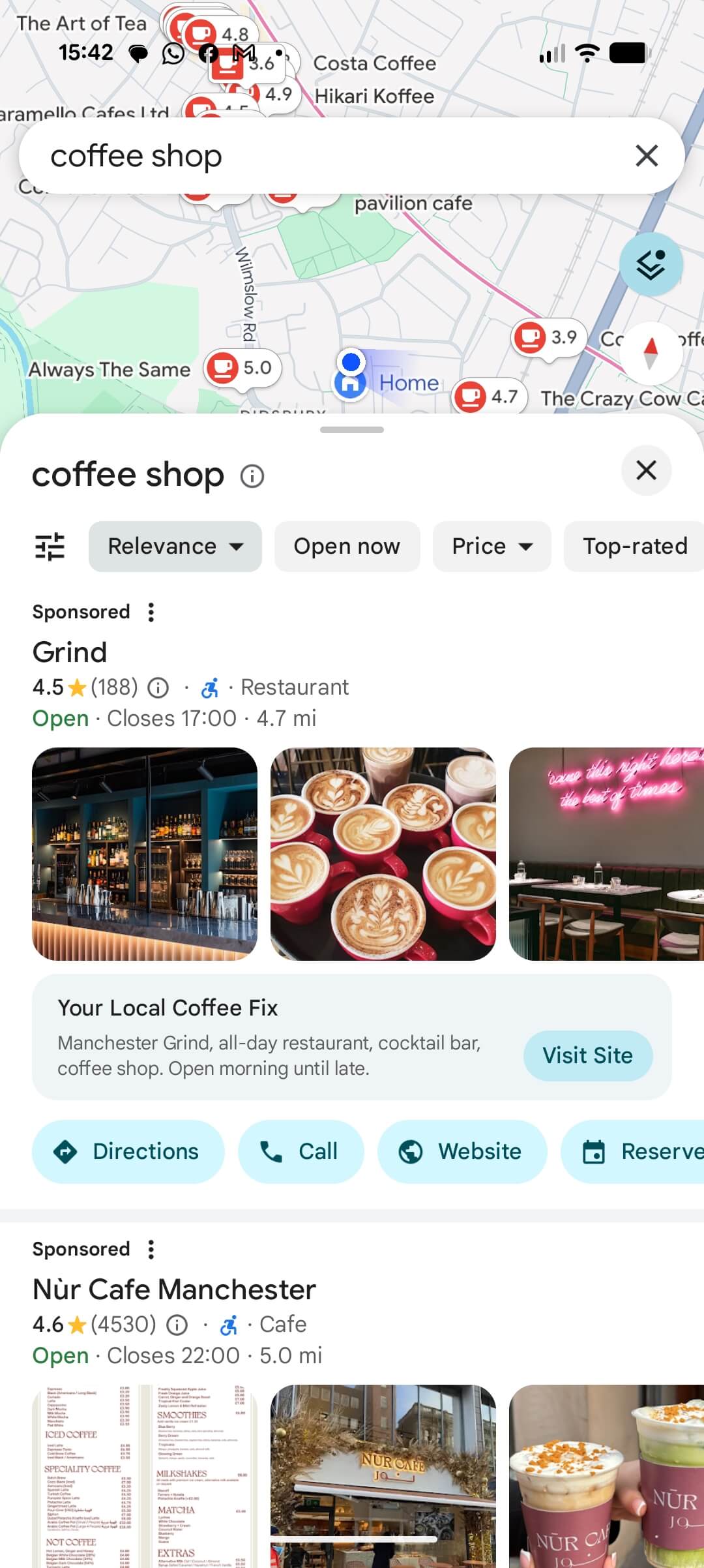
Search campaigns show ads primarily when users do a search using high-intent, text-based searches within the Google Maps app, the desktop Maps interface, or when doing a search on Google (where the "Local 3-Pack" is shown on the search results page.
-
Local Search Ads (Top of List): When someone searches in Google Maps for a category (e.g., "Italian restaurant Liverpool" or "dentist open now"), your business can appear at the very top of the list with a square badge, prominently above organic map listings
.
-
Local Pack Placements: On standard Google Search result pages, your Search ad can claim the top slot or bottom slot. inside the three-pack map snippet.
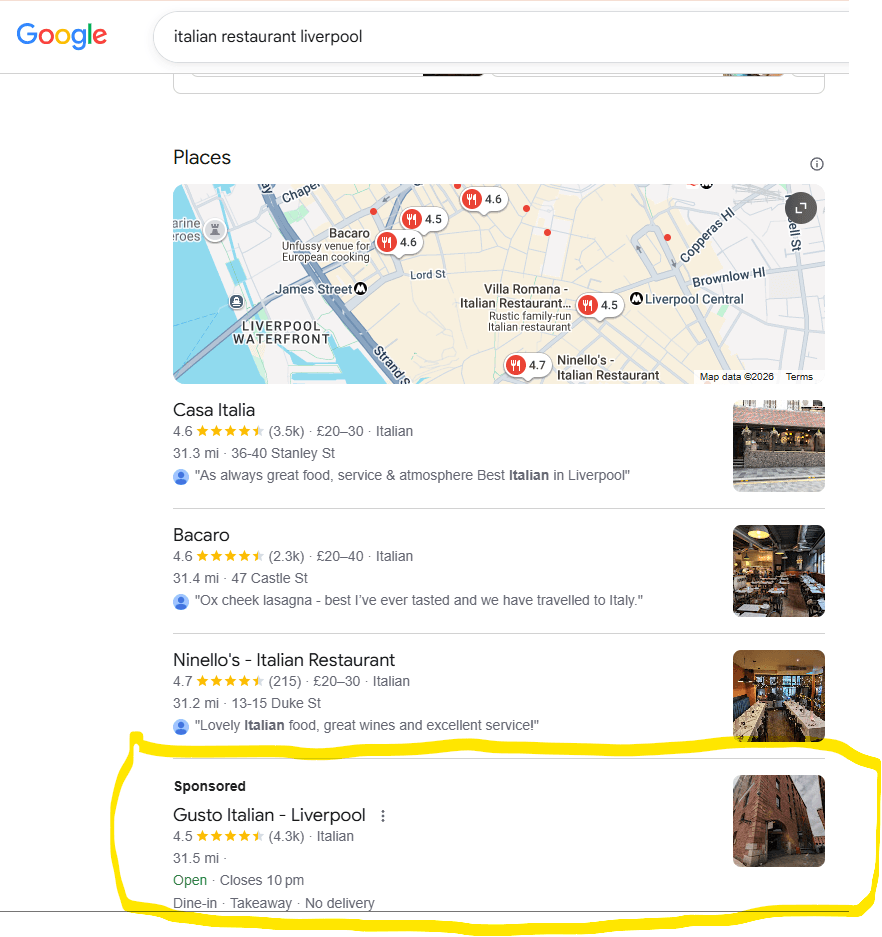
Sponsored ad in Google Search - showing after Maps 3-pack What happens when you click on the ad:
-
Clicking on the ad in Google Search or Google Maps opens the full business profile, allowing the user to click Directions, Call, or visit your Website (Or Share or Save).
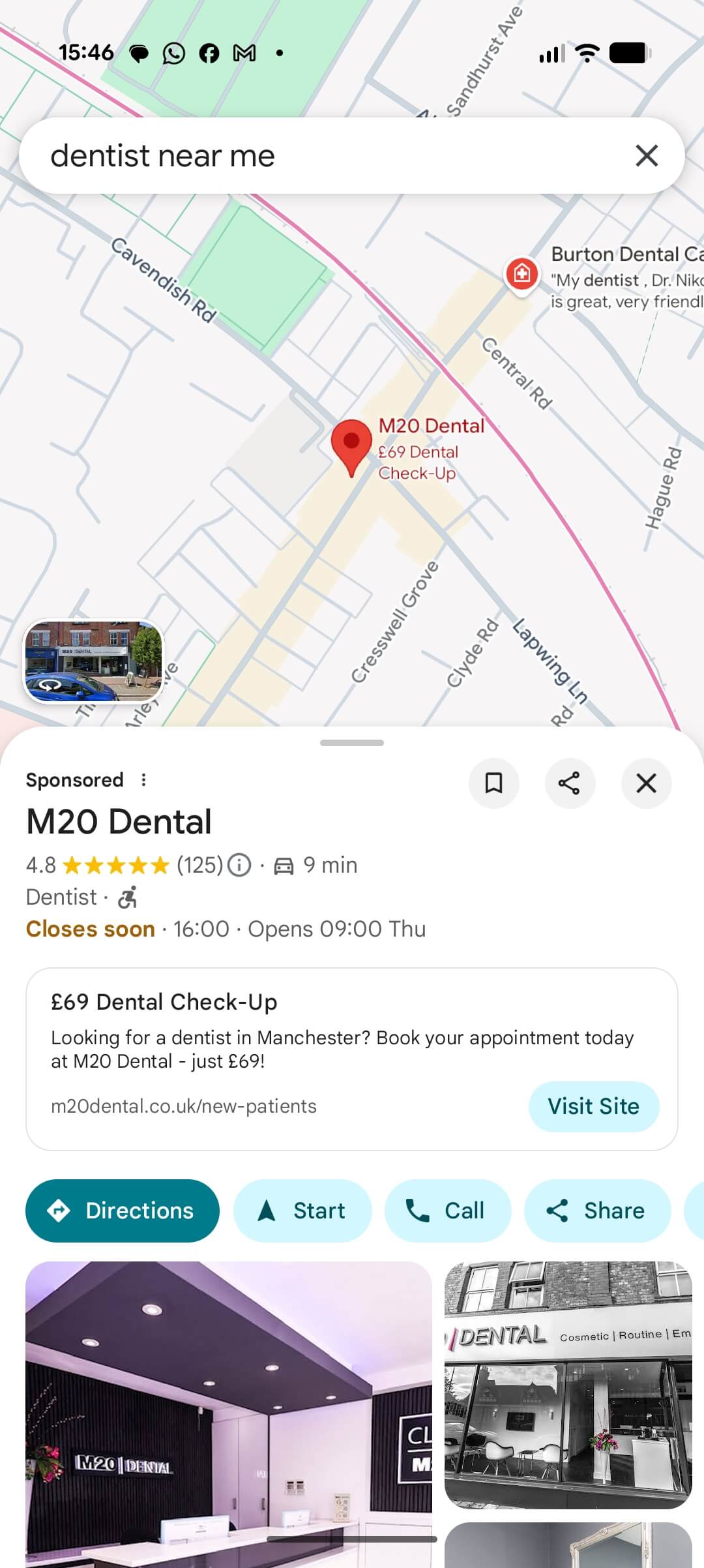
Sponsored ad in Google Maps – highlighting the advertisers Google Business Profile
Step 4: Check whether your ads are working
Once your campaign is running, give it time to collect useful data and review its performance regularly.
Useful things to monitor include:
- How many calls your advertising generates.
- How many people request directions to your business.
- How many visitors reach your website.
- How many enquiries or sales result from your advertising.
- How much you're paying for each useful enquiry or customer.
Review your keywords, location targeting, adverts and conversion tracking before spending more.
Also, don't worry if you search for your business on Google Maps and can't see your advert. Ads are not shown every time, and results vary according to the search, location, competition, budget and other factors.
Ready to advertise on Google Maps?
Advertising on Google Maps can be a valuable way to help local customers discover your business. The key is to set up your Google Business Profile correctly, link it to Google Ads, choose a suitable campaign and keep an eye on the results.
If you're new to Google Ads, a little expert guidance can help you avoid common mistakes and make your budget work harder.
At M Training, we offer public and private Google Ads training to help you understand campaign setup, keyword targeting, budgeting and optimisation.
Getting help on setting up and running Google Ads campaigns
If you want more help with your Google Ads, you can book a public scheduled course or a private course with us. For more details on our Google Ads course click here
-
Author

Martin Woodfield is a Digital Marketing Trainer, running courses for M Training and various universities. He is a Fellow of the Chartered Institute of Marketing and has worked for some of the UKs leading companies. He has 20 years experience in digital marketing and has worked in senior marketing roles for over 30 years.